Airplay
AirPlay 2
Quickplay Player libraries support AirPlay 2. The origin (sender) device receives an on-demand license request for the content being AirPlayed to a receiver device. Your client app is responsible for serving the license data to the player in time for playback to succeed. The player on the receiver end plays the content, while the player on the origin device receives feedback on playback.
Destroying the player on the origin device doesn't stop AirPlay playback, but killing the app does. When you destroy the player on the origin device, certain platform features that rely on the player on the origin device don't function as expected.
Prerequisites
Enable Background Modes for Airplay
Before using any Airplay APIs, enable the required iOS capability in Xcode.
- Open your iOS project in Xcode.
- Select your app target.
- Go to Signing & Capabilities.
- Add the Background Modes capability.
- Enable Audio, AirPlay, and Picture in Picture.
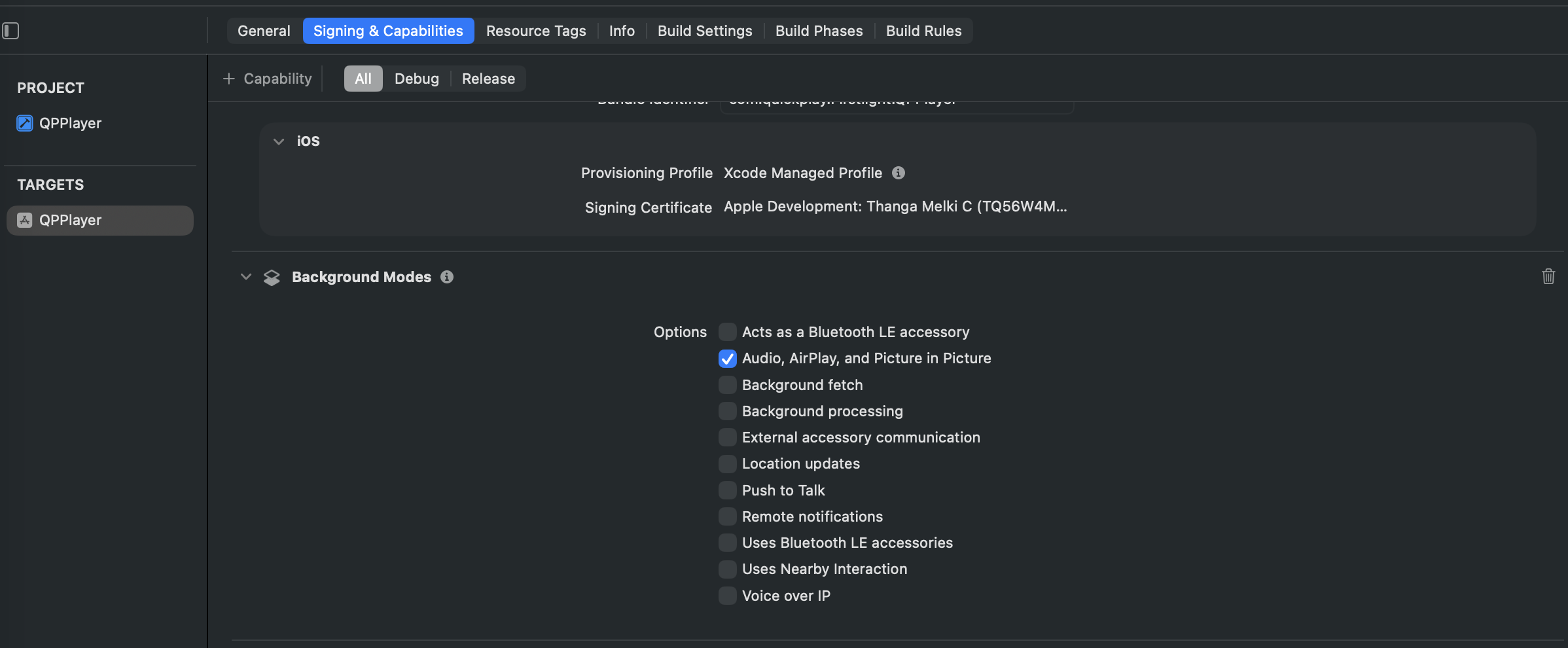
AirPlay DRM content
You can AirPlay content in Play & Connect and Connect & Play modes. With Play & Connect, you start playback on the sender device and connect to the receiver device to continue playback through AirPlay. With Connect & Play, you connect the sender device to the receiver device through the AirPlay route before starting playback.
In both modes, when playback starts on the receiver device, the player requests an on-demand license for the content being AirPlayed. As mentioned earlier, your client app should serve the license data in time for playback to start on the receiver.
The license issued by the Quickplay platform is valid for only 30 seconds from the moment authorization is issued. If you attempt to AirPlay content after license expiry, AirPlay playback fails. To recover, refresh the license when the player requests an on-demand license while AirPlaying content. Your client app should refresh the license before fetching license data for the player.
Personalization
All personalization features such as bookmarks, stream concurrency, and heartbeat work closely with the FLPlayer library. With AirPlay, the personalization features continue to work as long as the FLPlayer instance is alive on the origin device. Your application is responsible for keeping the player instance alive for the personalization features to function as expected.
AirPlay SSAI streams
You can AirPlay SSAI streams without any issues as long as you serve license data to the player on demand as described earlier.
SSAI ad tracking and analytics
Many SSAI Live integrations track ad breaks and analytics with feedback from the player on the origin device. While AirPlaying, this information may not be available for tracking SSAI ad breaks and analytics because the receiver is the one actually playing the content. This is a known limitation.
Enable AirPlay
Properties
| Property | Description |
|---|---|
allowsExternalPlayback | Enables AirPlay video playback |
usesExternalPlaybackWhileExternalScreenIsActive | Keeps AirPlay active when an external screen is connected |
Example
if let avPlayer = player.rawPlayer as? AVPlayer {
    avPlayer.allowsExternalPlayback = true
    avPlayer.usesExternalPlaybackWhileExternalScreenIsActive = true
}
Check AirPlay Route Status
Property
| Property | Description |
|---|---|
isAirplayRouteActive | true if AirPlay is currently the active audio route |
player.isAirplayRouteActive
Delegate Callbacks
Audio Route Changes
| Callback | When It Is Called |
|---|---|
playerAudioRouteDidChange(from:to:) | Called when the audio route changes (e.g. switching to/from AirPlay) |
func playerAudioRouteDidChange(
    from: AVAudioSession.Port?,
    to: AVAudioSession.Port?
) {
    // Check `to` port to detect AirPlay connection
}